

How to Download VMware Workstation Pro on Windows (Step-by-Step Guide – 2026)
Why this guide?
If you're trying to download VMware Workstation Pro for the first time, the process can feel a bit confusing. I initially found it confusing too, so I decided to document the exact steps. This is also the first article of my DevOps Home Lab Setup with VMware Workstation Pro series
What is VMware Workstation?
VMware Workstation Pro is a desktop virtualization application that lets you run multiple virtual machines (VMs) on a single physical PC. In other words, you can run different Operating Systems (like Ubuntu or Windows 10) on top of your current OS (for example, Windows 11). Each VM has its own:
Virtual CPU
Virtual Memory
Virtual Storage
Virtual Network Adapters
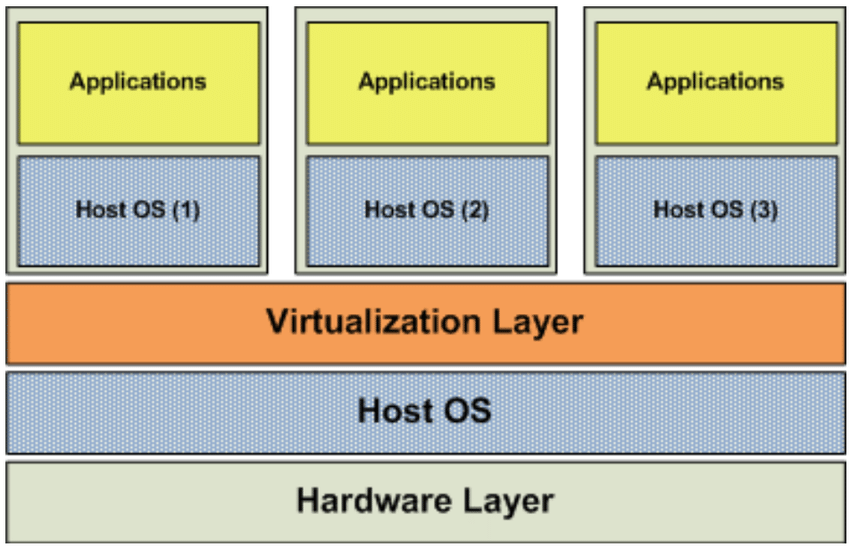
Image source: 2: OS Layer Virtualization [18] | Download Scientific Diagram
Think of it like having multiple computers inside one machine. You can test, break, experiment, and learn inside this VM, and you don't have to worry about affecting your real system. No dual boot. No extra hardware. No reboot required.
Since late 2024, VMware Workstation Pro is license-free for personal use. You can read about it here
Why I chose VMware Workstation instead of VirtualBox?
I actually like the UI of VirtualBox more. However, my decision was mainly performance-based.
Earlier, my system had only an HDD (even the boot drive). On the same hardware, VMware Workstation performed better for me compared to VirtualBox. Now my OS runs on SSD, but I still store my VM files on HDD, and I'm satisfied with the performance I get from VMware.
Another feature I really like is Virtual Network Editor. It allows me to create multiple isolated virtual networks. I can create multiple VMs, attach multiple network adapters, and practice routing between networks.
If you're using VirtualBox or any other Type-2 hypervisor, I'd suggest trying VMware Workstation, especially since it's license-free now.
Download steps
Go to https://www.vmware.com
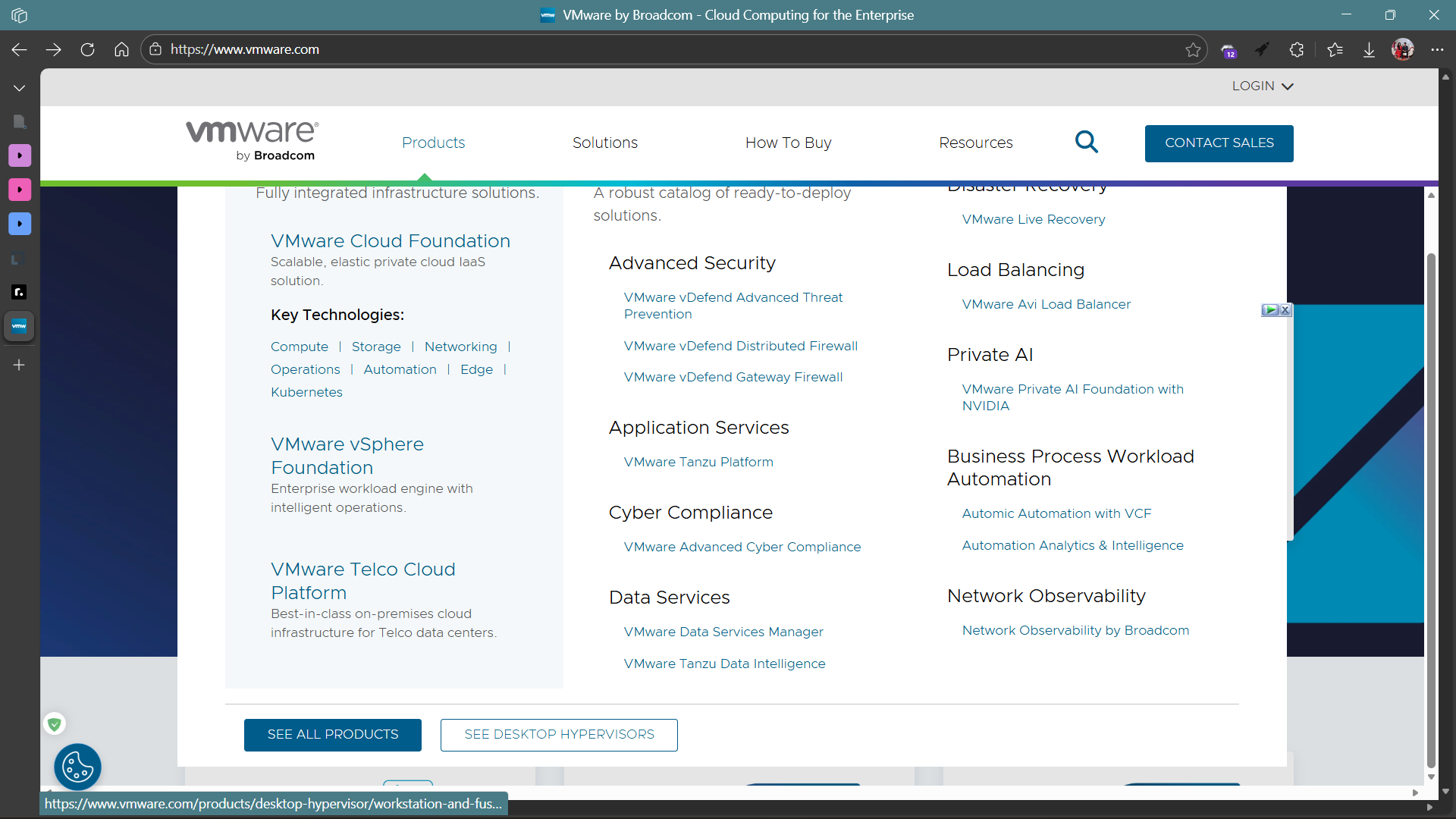
Click on
Productsthen scroll and click onSee Desktop Hypervisors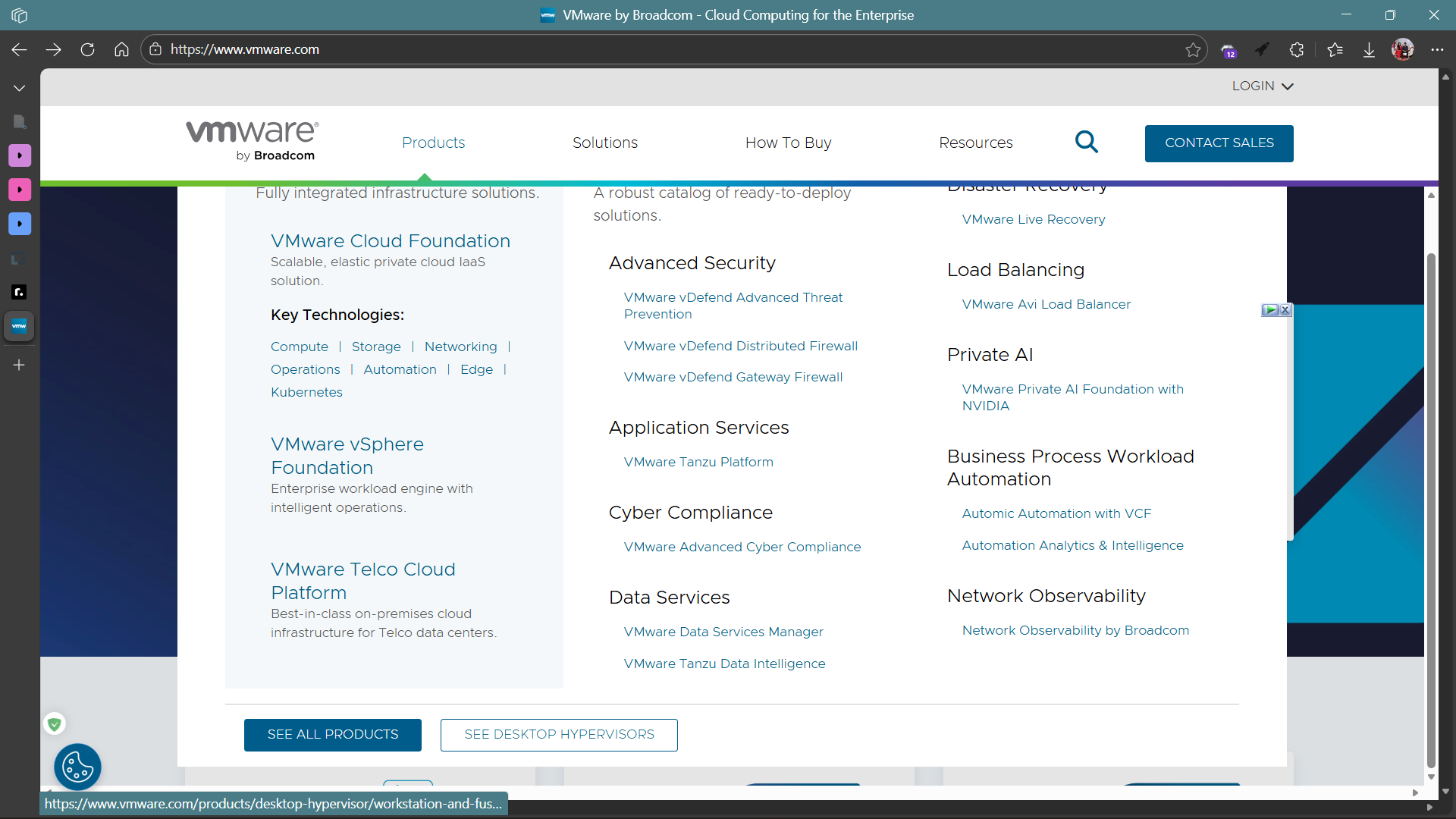
Click on
Download Nowand it should redirect you to the Broadcom login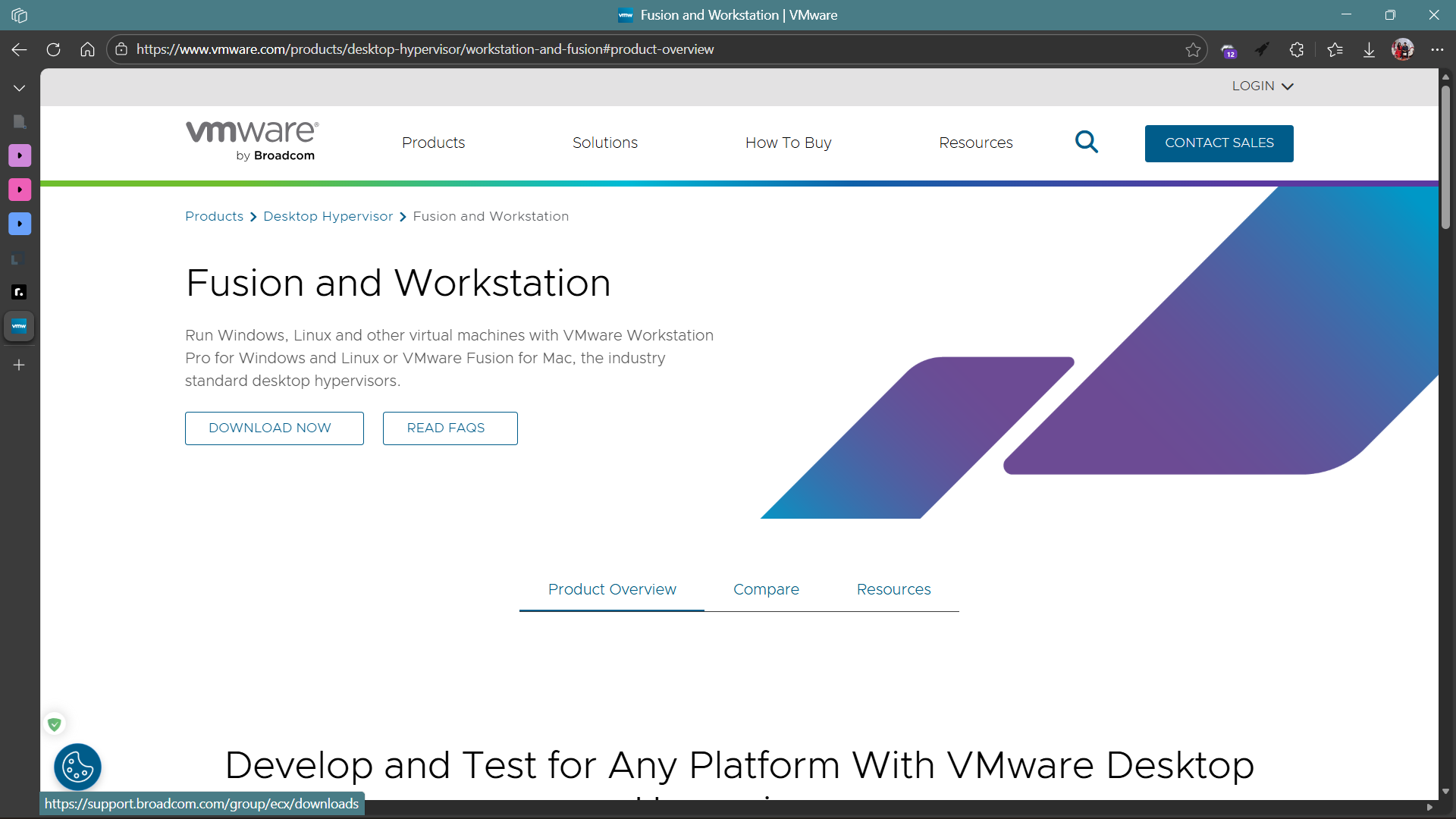
Since we don't have an account, we need to register first
Click
LOGINon the top rightClick on the greyed out
REGISTERbutton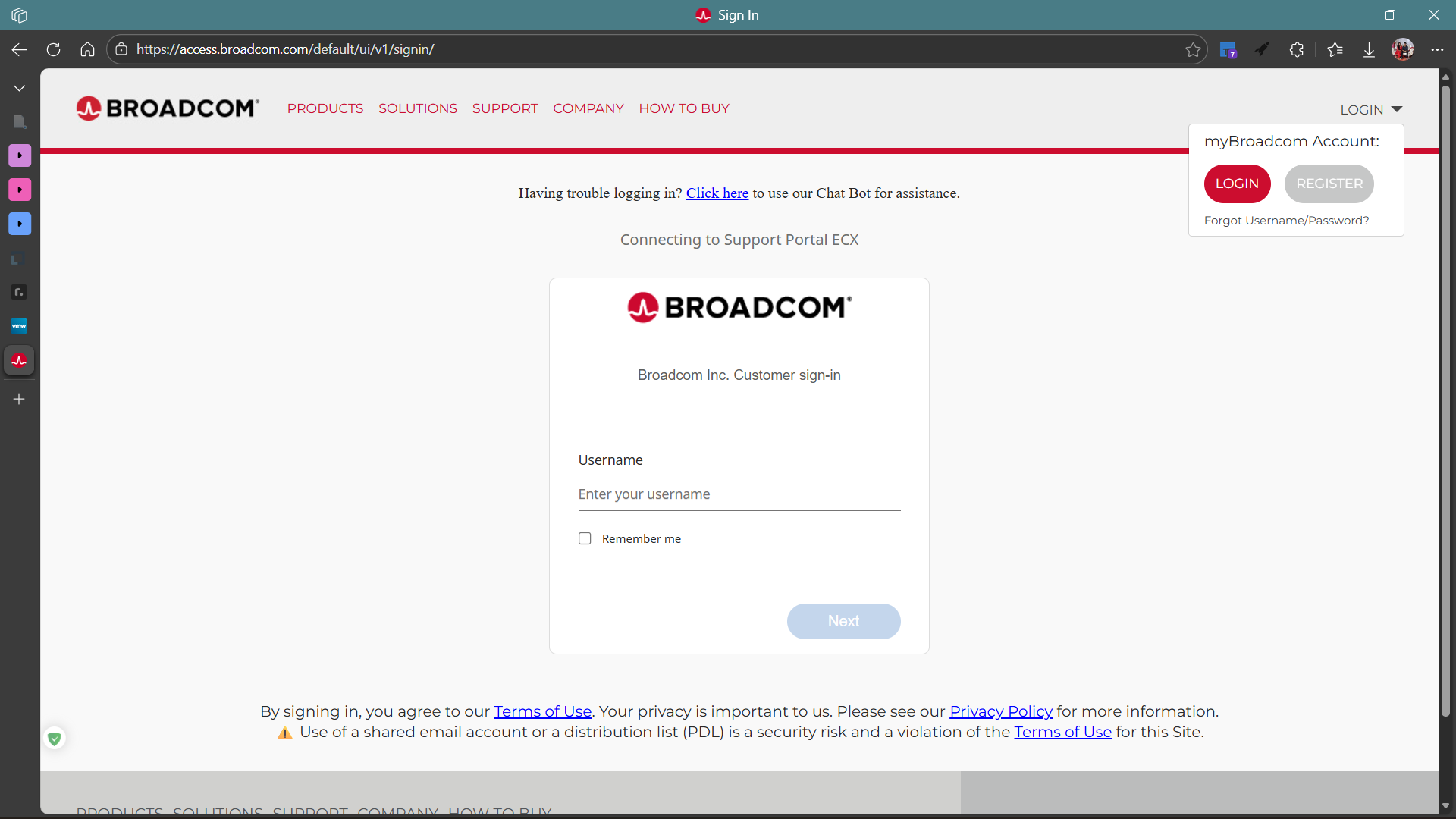
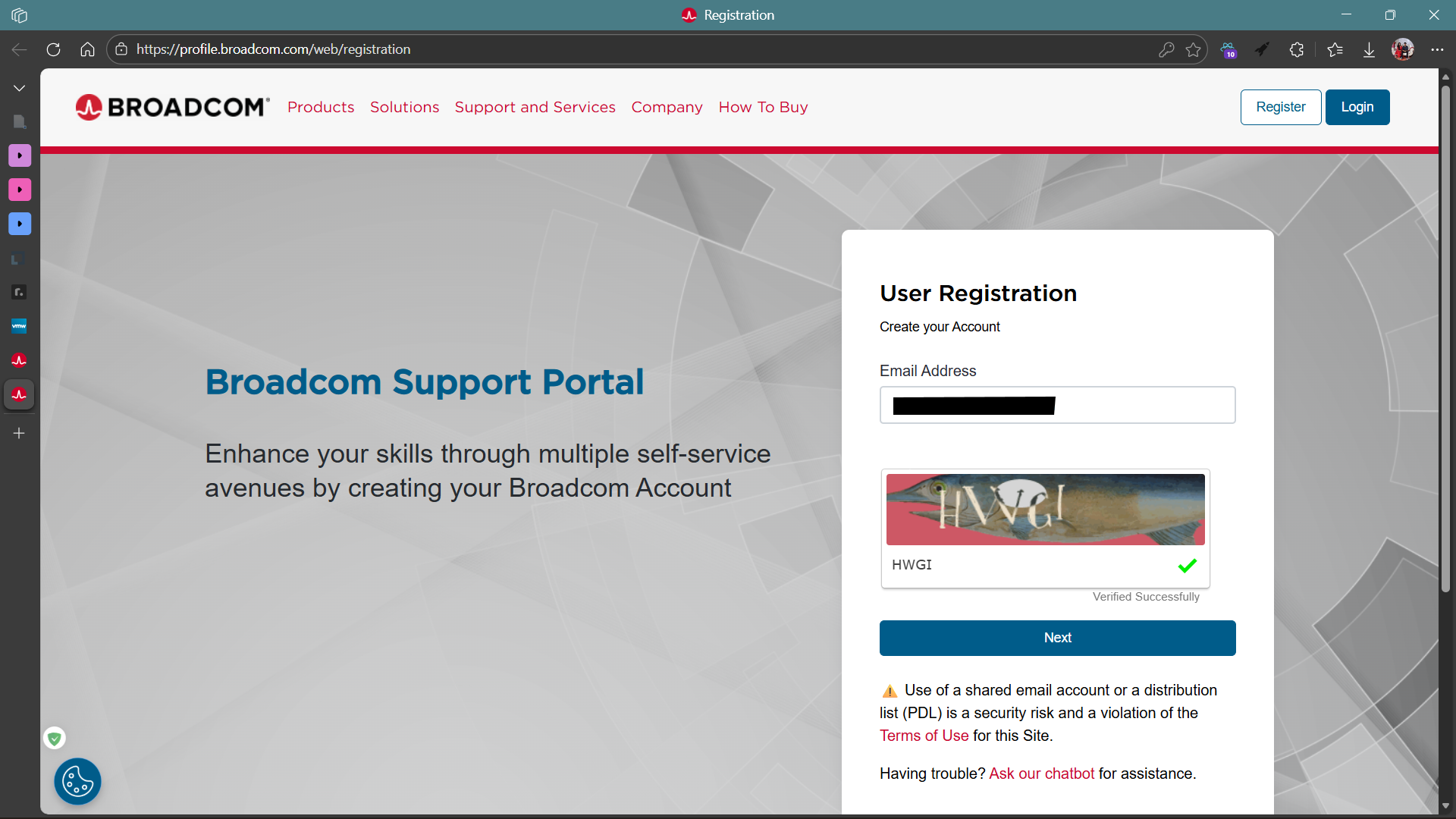
Enter your email ID and answer the captcha
Enter the 6-digit OTP you received in your mail and click
Verify & Continue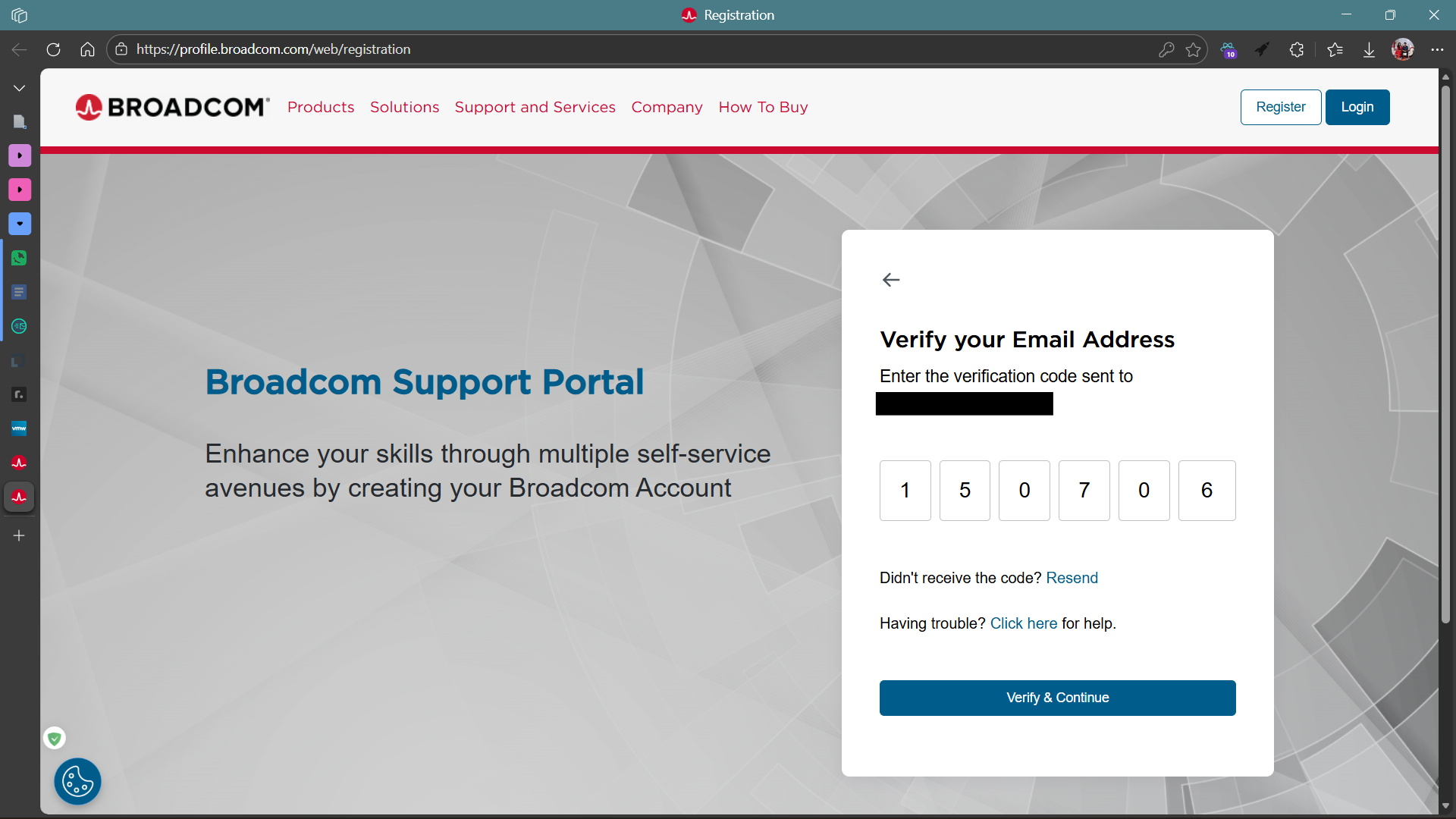
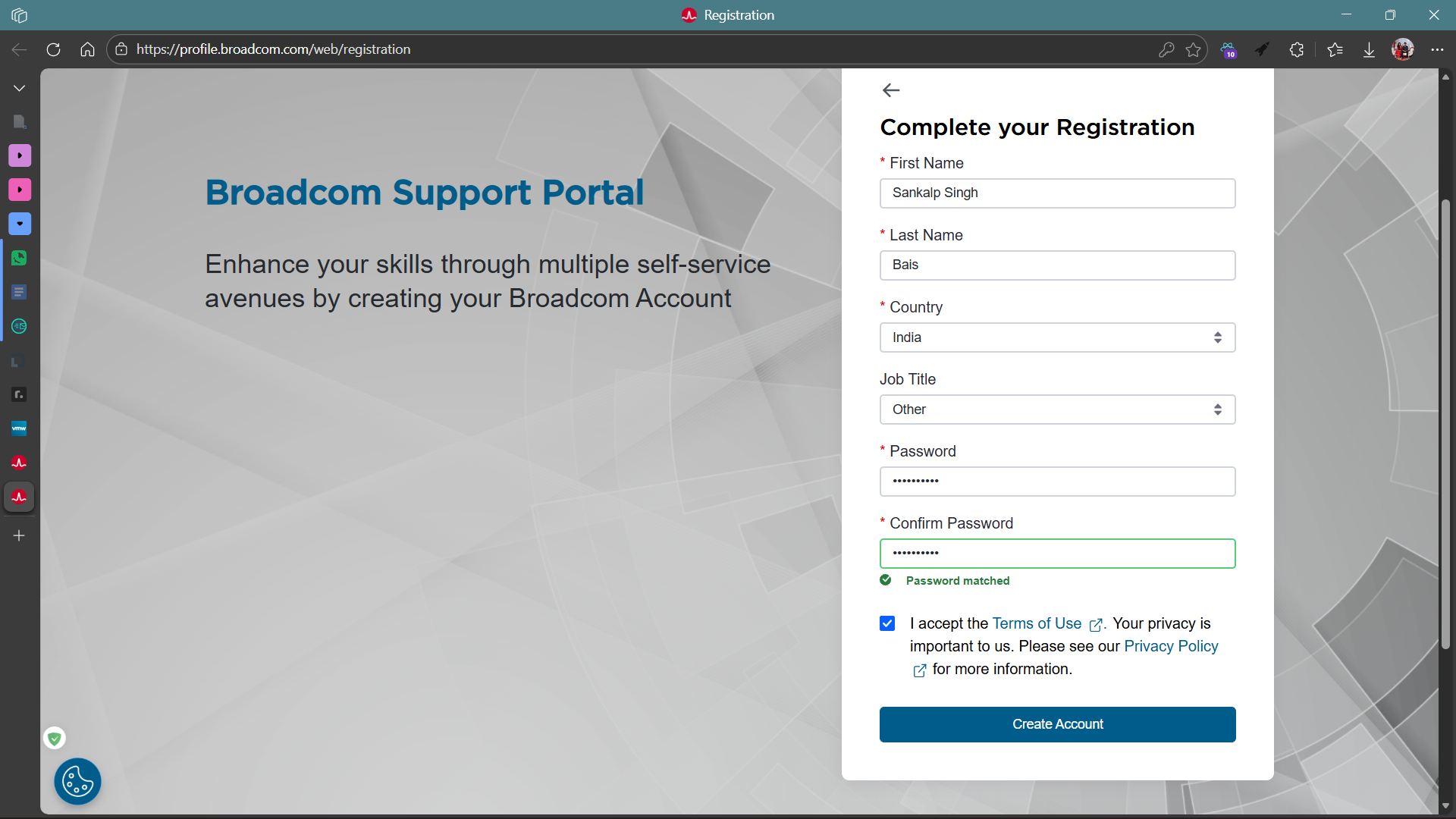
Fill in the required details on the final page to complete the registration process

Click on
LOGINon the top right, and log in with your newly created account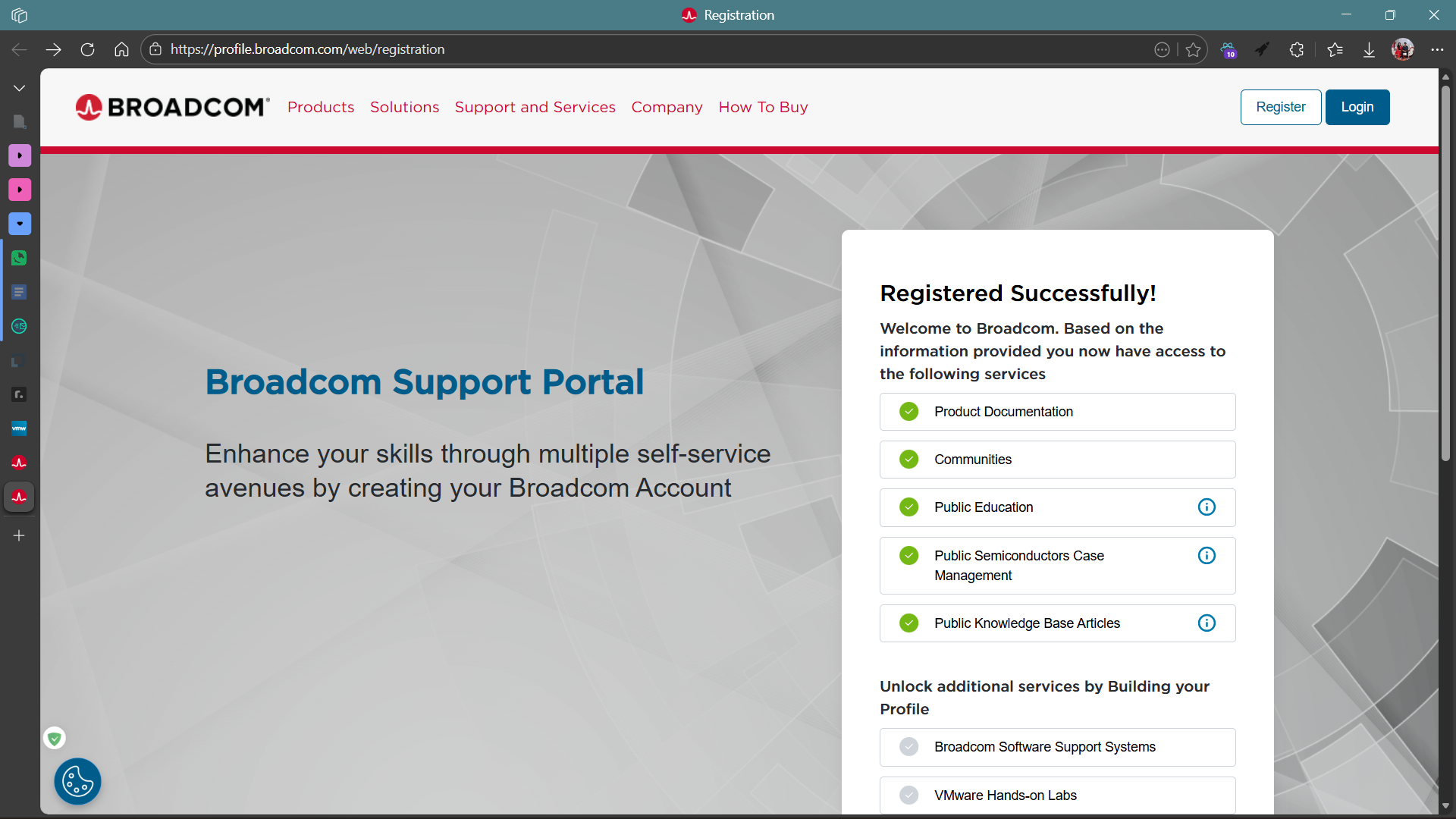
After successful login, you will be taken to your dashboard. You may choose to close the navigation tutorial
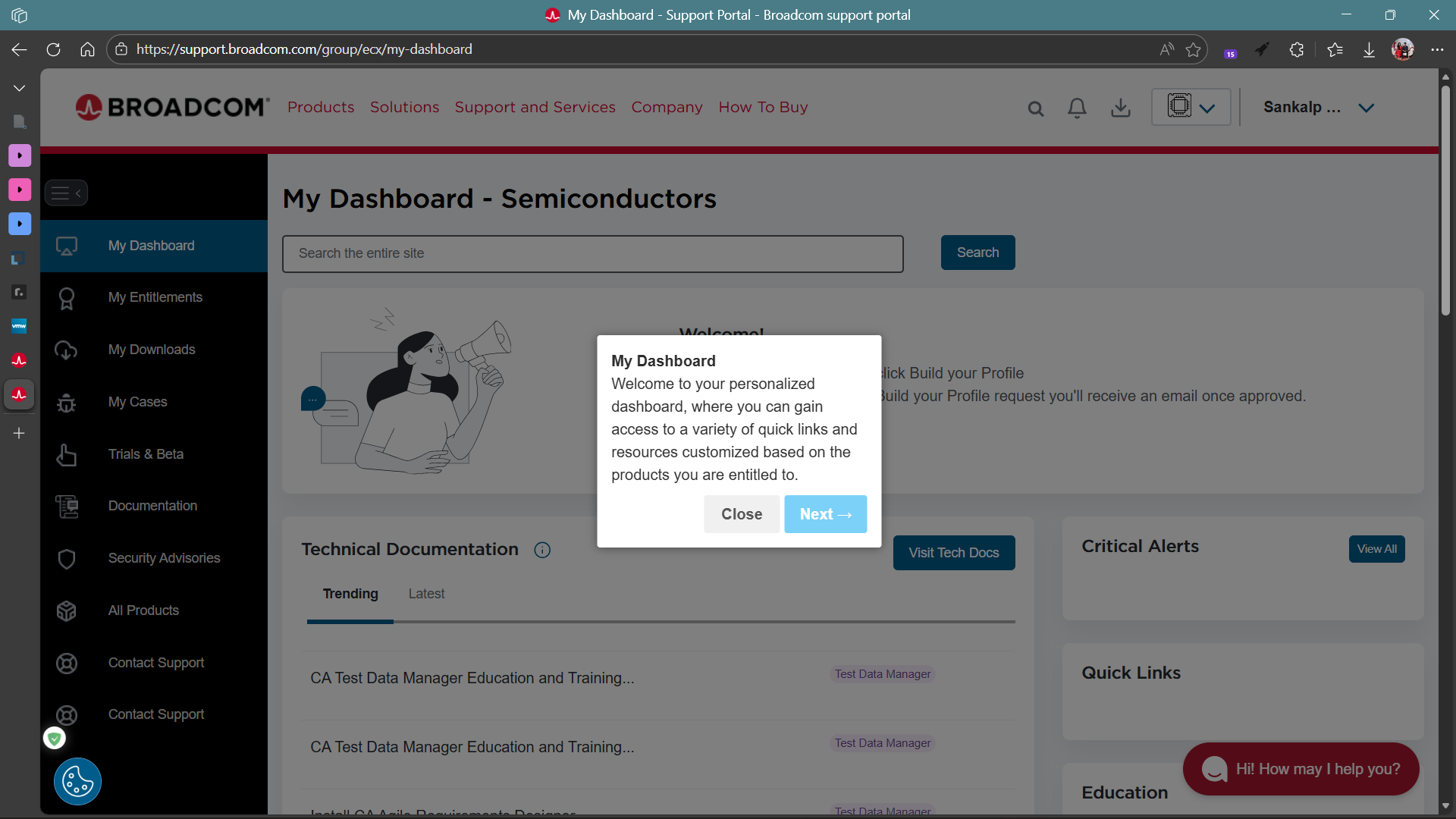
Next
Click
My Downloadson the left sideClick
HEREin front of"Free Software Downloads Available HERE"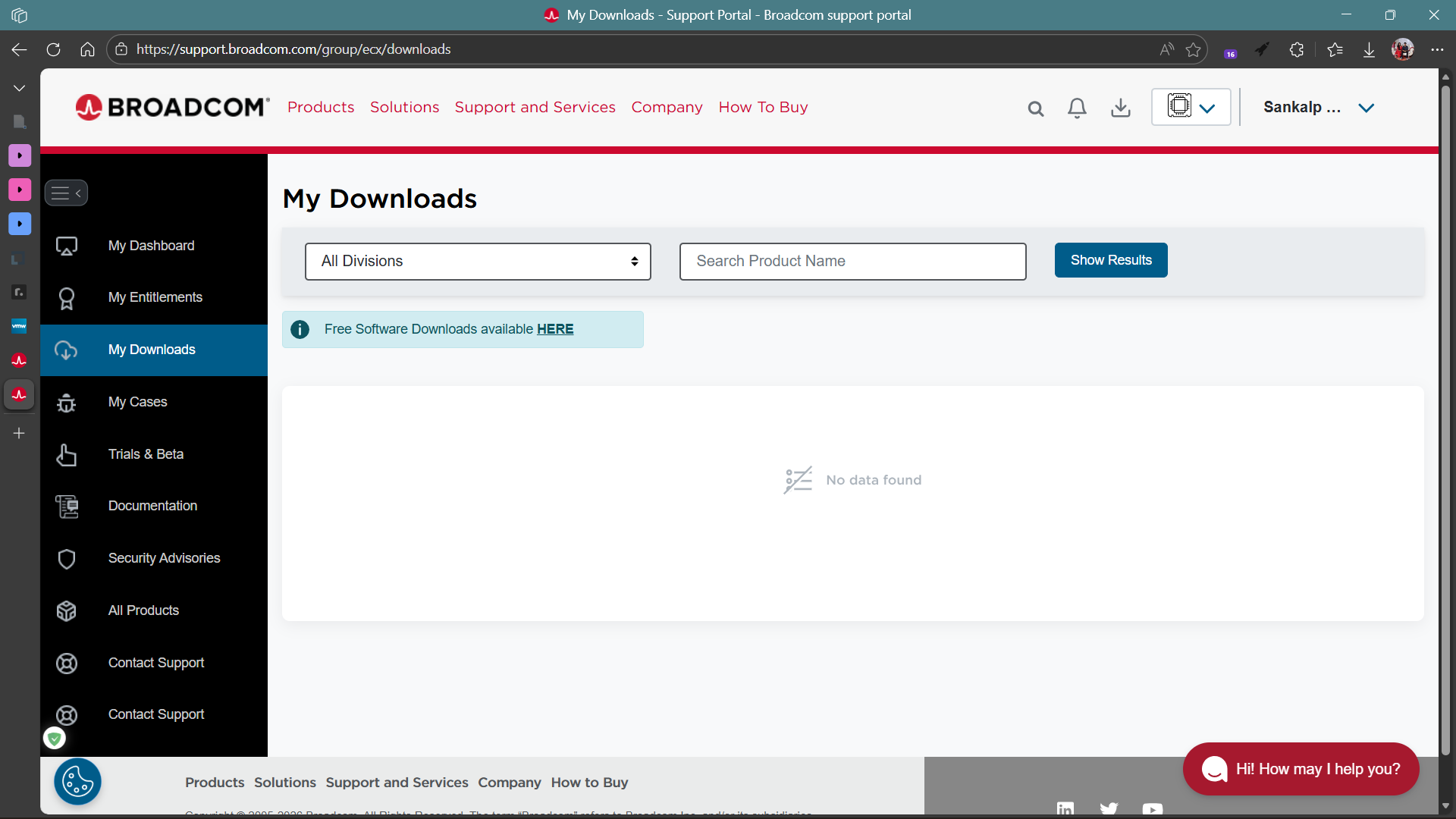
Search for VMware Workstation and click
VMware Workstation Pro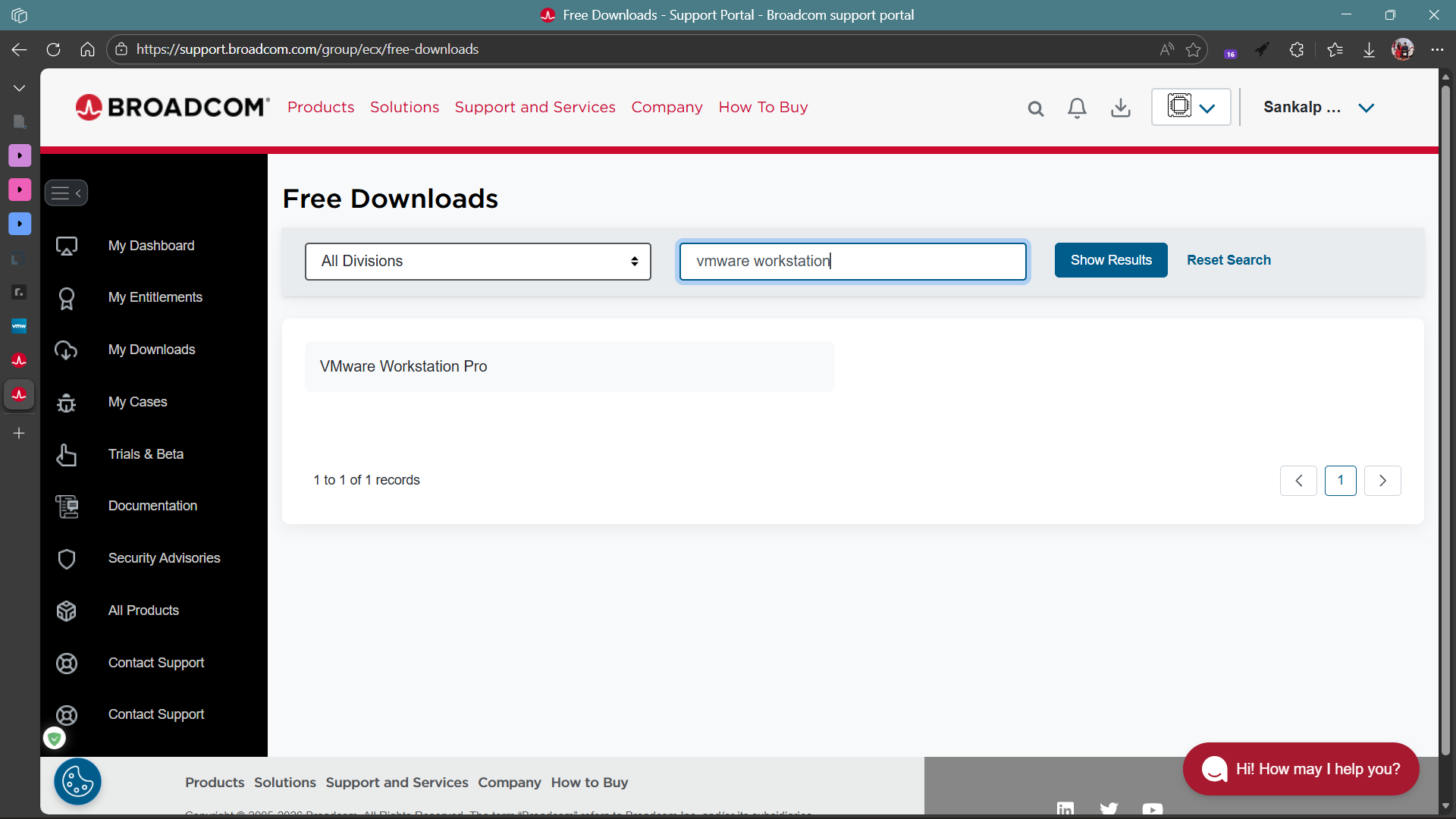
Expand
VMware Workstation Pro 25H2 for Windowsand click25H2under releases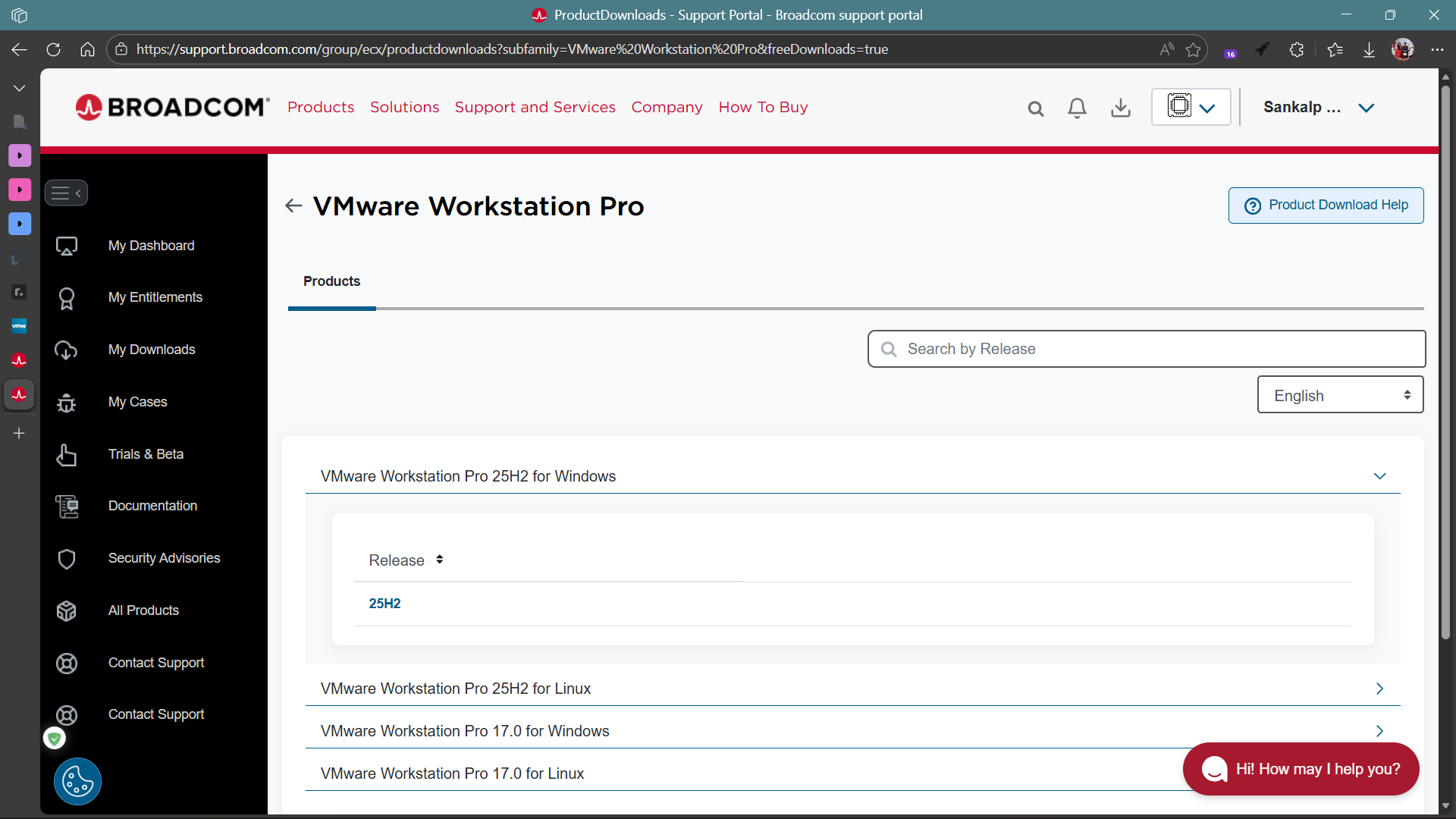
To accept the terms and conditions:
Click on Terms and Conditions (blue text)
It will open in a new tab
Close that tab
The check box will now become active
Tick it and click the download icon next to the MD5 checksum
On hover, it will show "Screening Required"
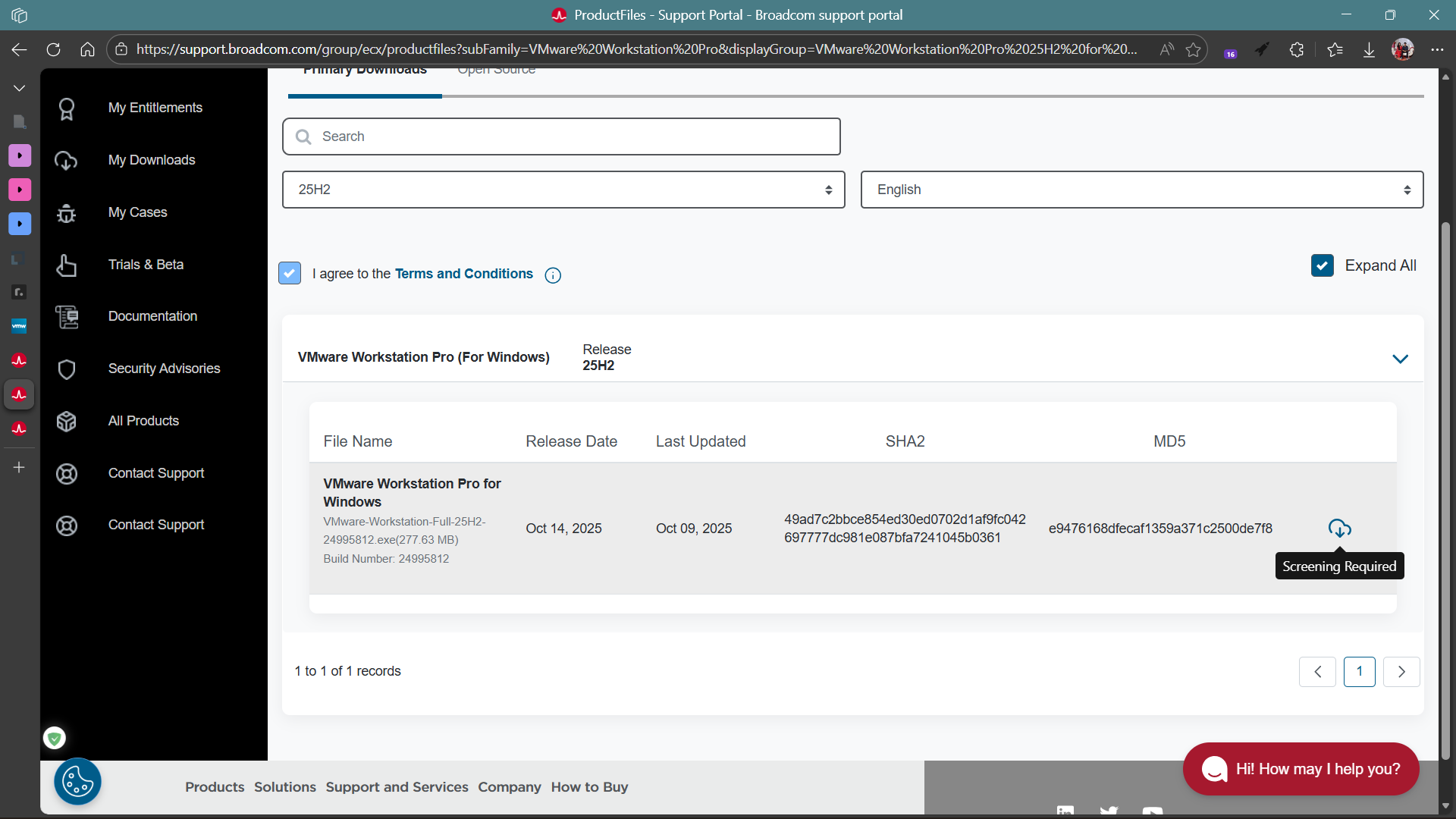
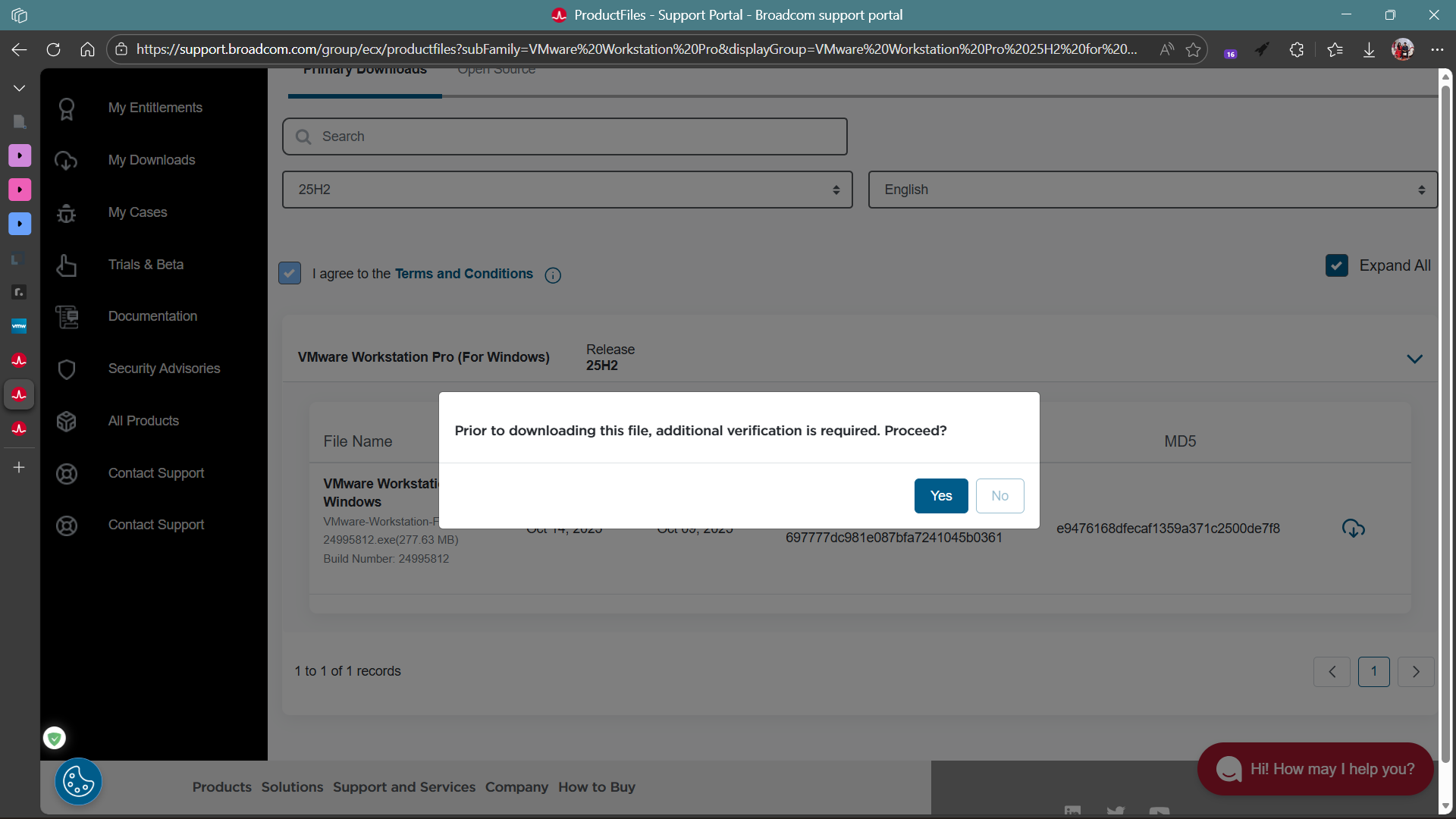
- Click
Yes
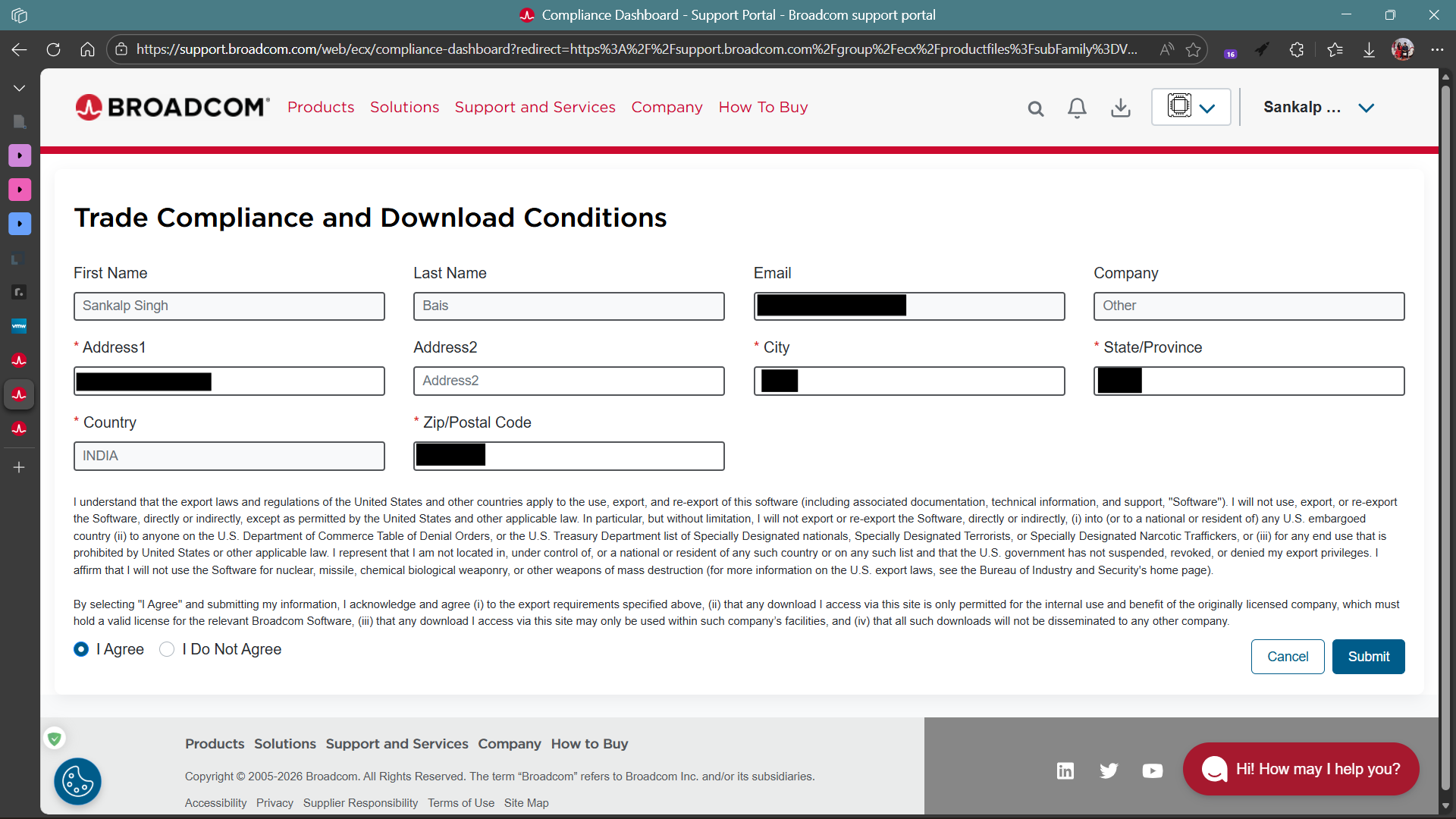
- Fill in your address and submit
- Click the download button again. This time, on hovering, it will say HTTPS Download
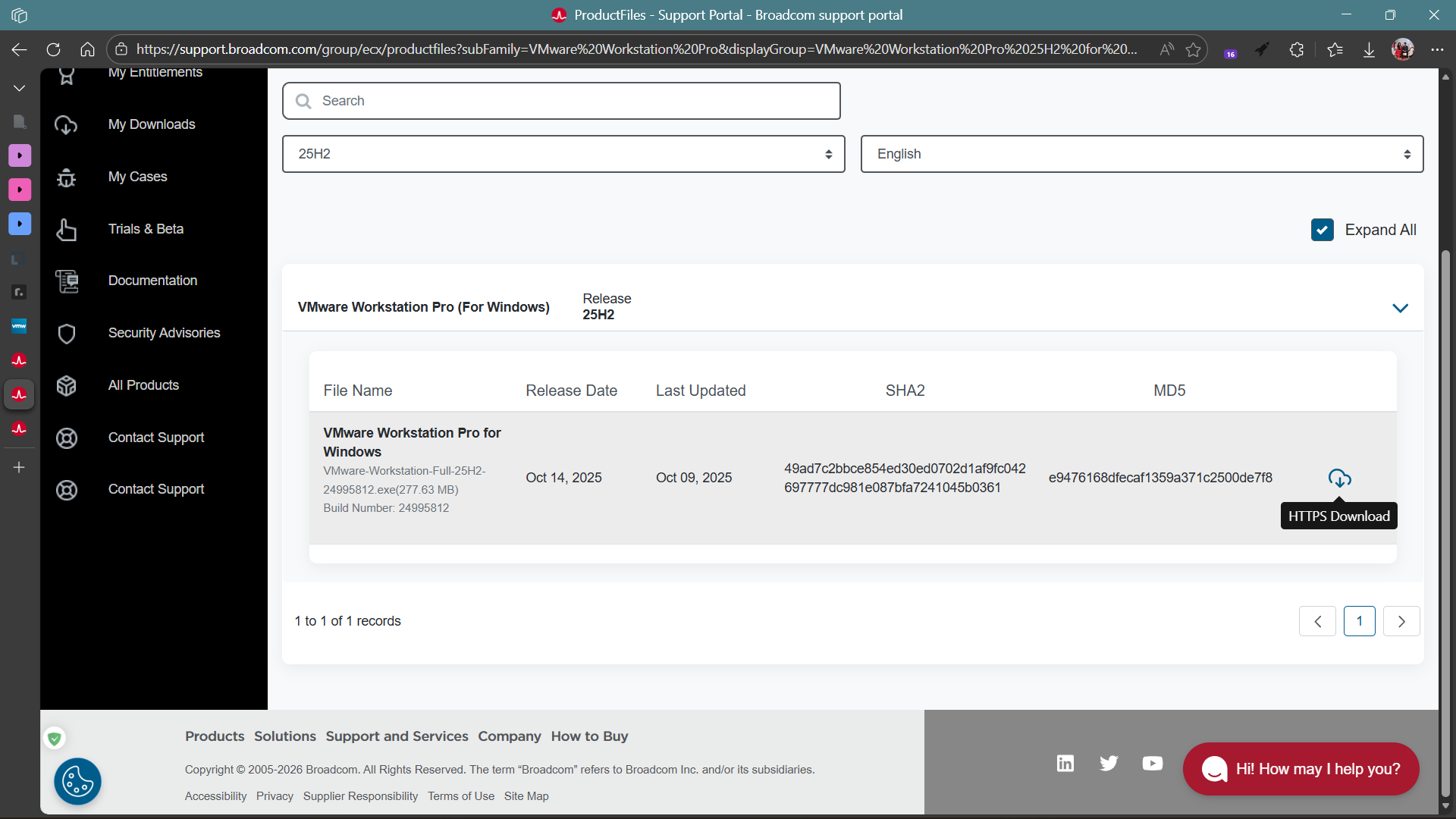
- This should start the download
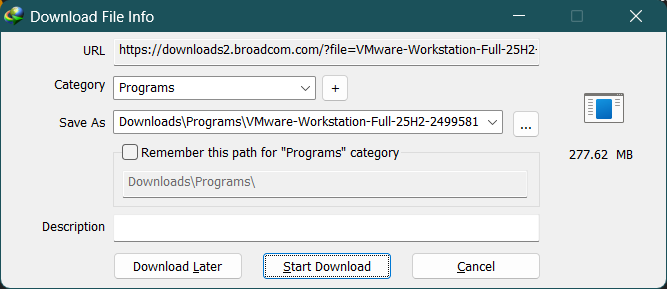
If this helped you, follow the series — next, we’ll install VMware on Windows 11
Click here for the next part : How To Install VMware Workstation Pro 25H2 On Windows
Series Roadmap
Download VMware Workstation Pro ✅
Creating Your First VM (Ubuntu Server 22.04)
Installing Rocky Linux on VMware
Setting up Internal Networks
Configuring Static IP on Ubuntu and Rocky
Building a Gateway VM for Multi-VM Lab Architecture
Multi-VM DevOps Lab Architecture